Your home WiFi network is the gateway to everything connected in your household. Smartphones, laptops, smart TVs, gaming consoles, security cameras, and even smart appliances rely on your wireless network every day. While this convenience makes life easier, it also creates opportunities for cybercriminals if your WiFi isn’t properly secured.
Learning how to secure home WiFi is no longer optional. A poorly protected network can expose your personal information, banking details, passwords, and connected devices to hackers. Unauthorized users may also consume your internet bandwidth, slow your connection, or launch attacks using your network without your knowledge.
The good news is that securing your WiFi doesn’t require advanced technical knowledge. Most improvements can be completed within a few minutes through your router’s settings.
This comprehensive guide explains every important step, from changing default passwords to enabling advanced encryption, helping you create a safer and faster wireless network.
Why Home WiFi Security Matters
Many people believe hackers only target businesses, but home networks are attacked constantly. Automated bots scan the internet searching for vulnerable routers with weak passwords or outdated software.
If someone gains access to your WiFi, they may be able to:
- Steal sensitive personal information
- Monitor internet activity
- Access shared files
- Infect devices with malware
- Slow your internet speed
- Use your connection for illegal activities
- Attempt identity theft
- Compromise smart home devices
The more connected devices you own, the more important strong network security becomes.
Signs Your WiFi Network May Not Be Secure
Before improving security, look for warning signs that indicate unauthorized access.
Common indicators include:
- Internet suddenly becomes much slower.
- Unknown devices appear in your router dashboard.
- Your WiFi disconnects frequently.
- Router settings change unexpectedly.
- Data usage increases without explanation.
- Devices behave unusually after connecting to WiFi.
Even if you don’t notice these issues, preventive security measures are always recommended.
Change the Default Router Login Credentials
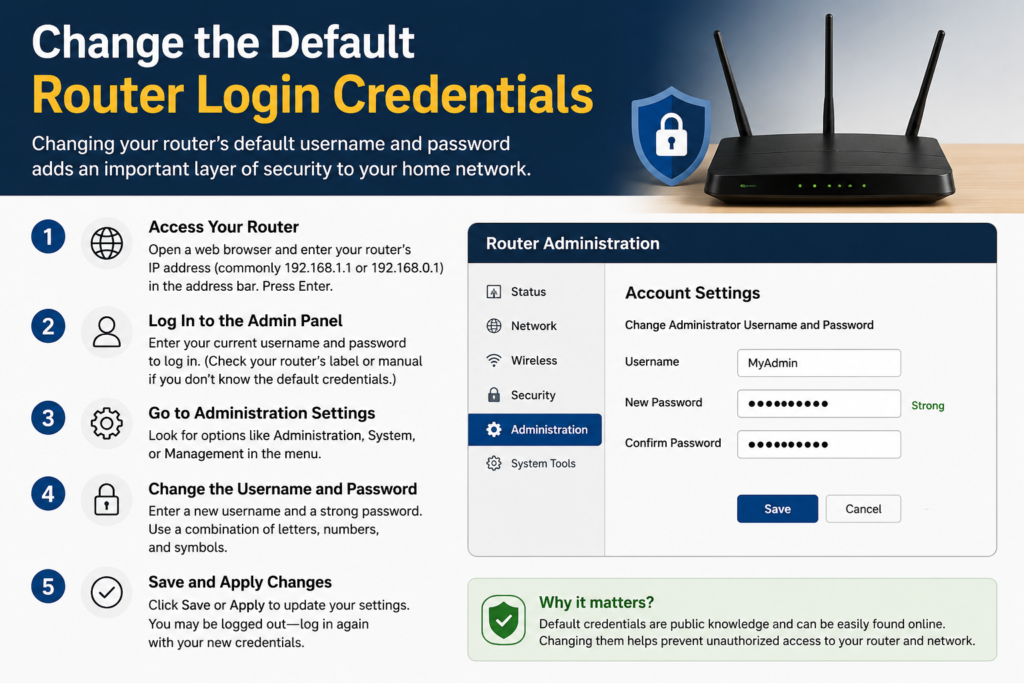
One of the biggest mistakes homeowners make is leaving the router’s default administrator username and password unchanged.
Manufacturers often use predictable combinations like:
- admin/admin
- admin/password
- admin123
These credentials are widely available online, making it easy for attackers to access your router settings.
Instead:
- Create a long administrator password.
- Avoid dictionary words.
- Include uppercase letters, lowercase letters, numbers, and symbols.
- Store it in a password manager.
Remember that the router login password is different from your WiFi password.
Use WPA3 Encryption Whenever Possible
Encryption protects information sent between your devices and your router.
Current security standards include:
WPA3
This is the newest and most secure wireless encryption protocol.
Benefits include:
- Stronger password protection
- Better resistance against brute-force attacks
- Improved protection on public and home networks
- Enhanced privacy
WPA2-AES
If WPA3 isn’t available, WPA2 with AES encryption remains a secure option.
Avoid using:
- WEP
- WPA
- WPA-TKIP
These older protocols contain well-known vulnerabilities that attackers can exploit.
Create a Strong WiFi Password
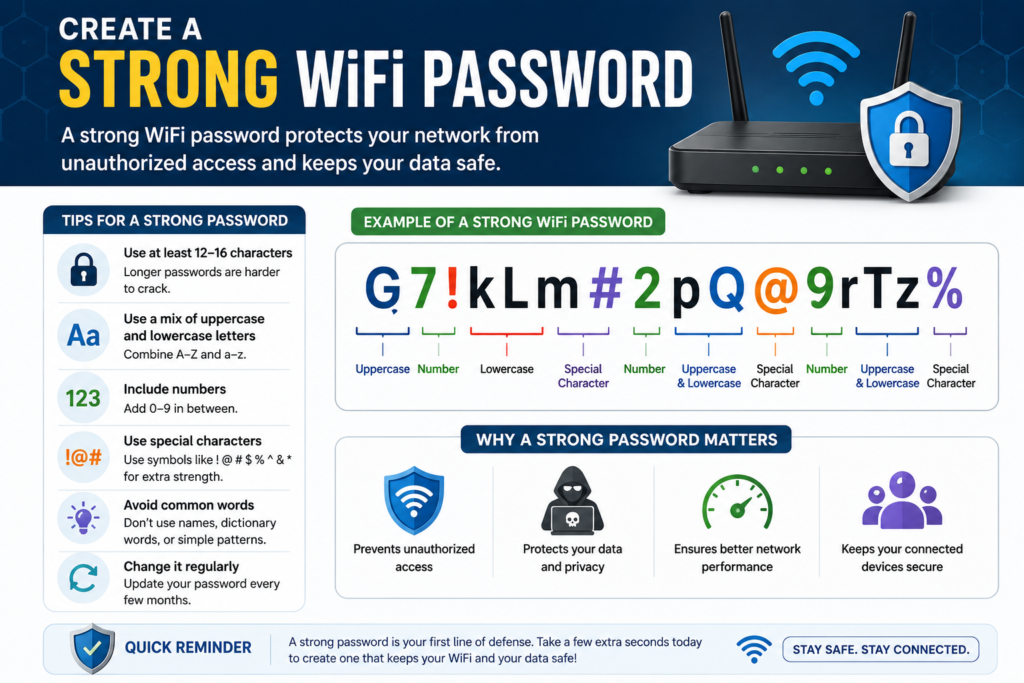
A weak wireless password is one of the easiest ways for hackers to gain access.
A strong WiFi password should:
- Be at least 16 characters long
- Include random letters and numbers
- Contain special characters
- Avoid birthdays or names
- Be unique to your network
Good example:
H7@Lm92!Qa#Z4Px8
Poor examples:
- password123
- 12345678
- mywifi
- iloveyou
Changing your WiFi password every year is a smart security practice, especially if you’ve shared it with many guests.
Change Your Default Network Name (SSID)
Your router comes with a default WiFi network name known as the SSID.
Examples include:
- TP-Link_5467
- NETGEAR45
- ASUS_RT_AX55
Default names often reveal the router manufacturer, giving attackers useful information.
Choose a custom name that:
- Doesn’t include your address
- Doesn’t include your family name
- Doesn’t reveal router brand
- Isn’t offensive or easily identifiable
Example:
BlueSkyHome24
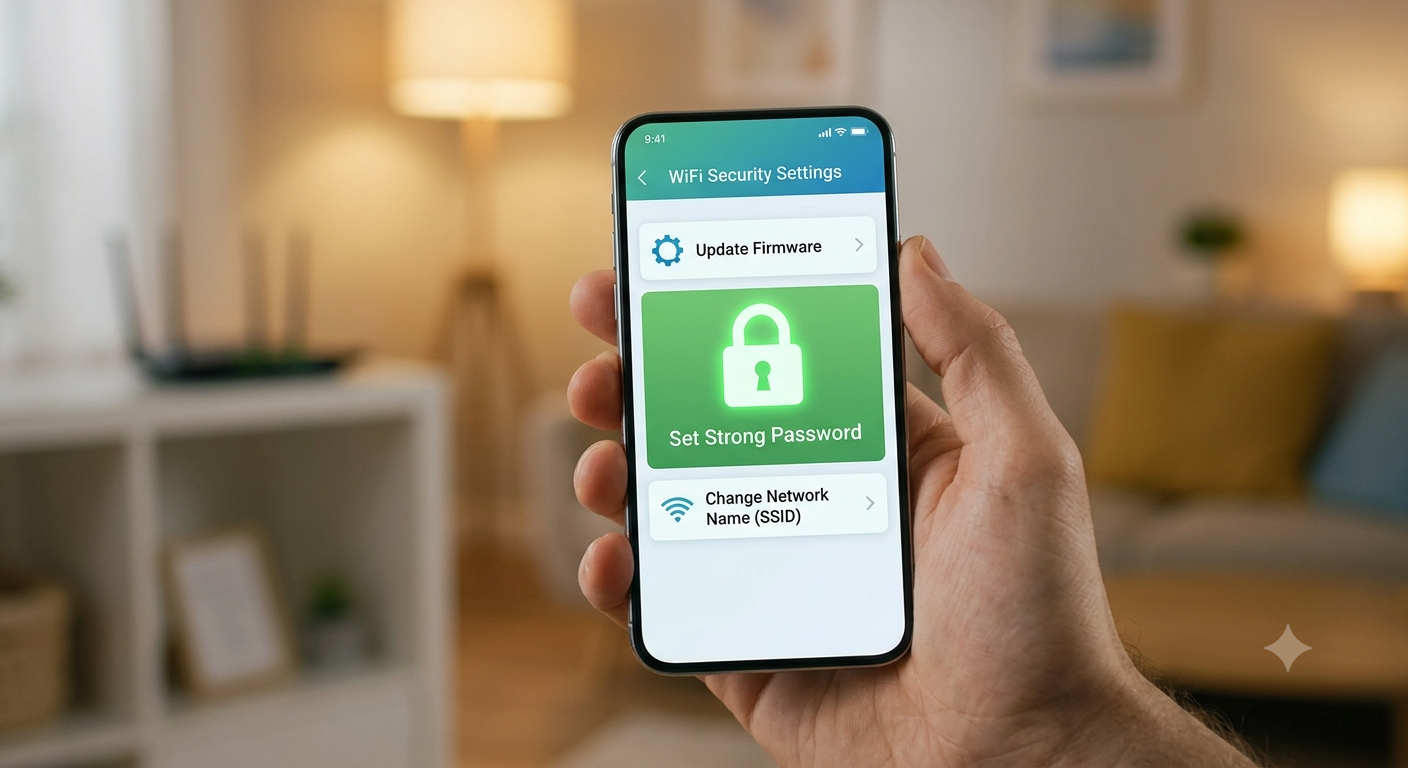
Keep Router Firmware Updated
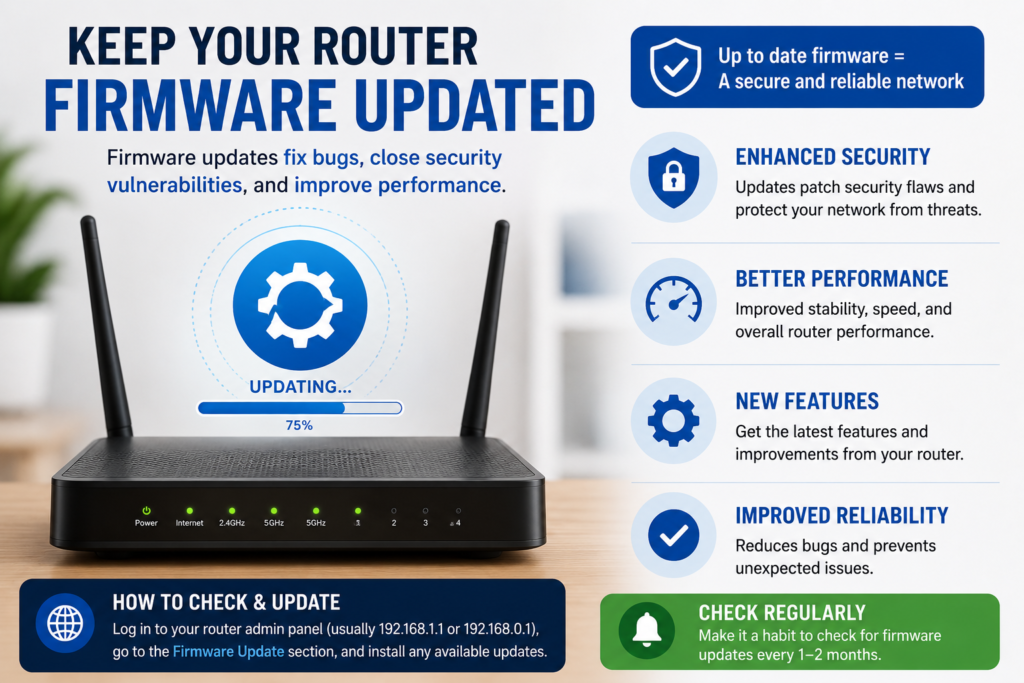
Firmware updates fix security vulnerabilities discovered after your router is released.
Manufacturers regularly publish updates that:
- Patch security flaws
- Improve performance
- Increase stability
- Add new features
- Improve compatibility
Many modern routers support automatic updates.
If yours doesn’t:
- Log into your router monthly.
- Check for firmware updates.
- Install updates promptly.
Ignoring updates leaves your network exposed to known exploits.
Disable Remote Router Management
Some routers allow remote access over the internet.
Unless you specifically need this feature, disable it.
Leaving remote management enabled increases the number of ways attackers can attempt to access your router.
Most households never require remote administration.
Enable Your Router Firewall
Most modern routers include a built-in firewall.
This feature helps:
- Block suspicious incoming traffic
- Prevent unauthorized connections
- Filter malicious requests
- Reduce hacking attempts
Verify that your firewall remains enabled after firmware updates or factory resets.
Turn Off WPS
WiFi Protected Setup (WPS) was created to simplify connecting devices.
Unfortunately, its PIN system contains security weaknesses.
Instead of using WPS:
- Enter your WiFi password manually.
- Disable WPS in router settings.
Although slightly less convenient, this significantly improves wireless security.
Create a Separate Guest Network
Visitors often need internet access, but they shouldn’t have access to your personal devices.
A guest network offers several advantages:
- Isolates visitors from your computers.
- Protects shared files.
- Keeps smart home devices separate.
- Limits unauthorized access.
Assign a unique password to the guest network and update it periodically.
Secure Smart Home Devices
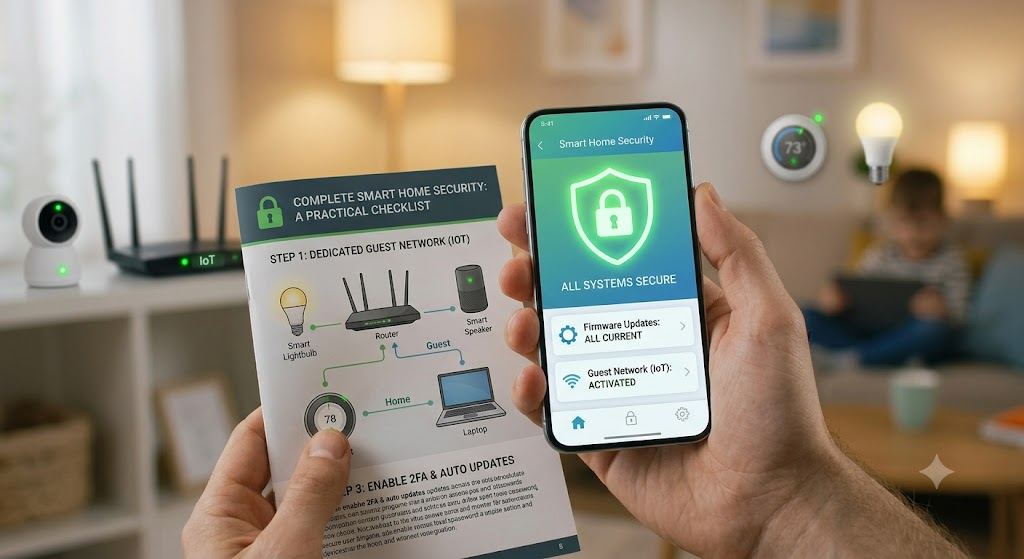
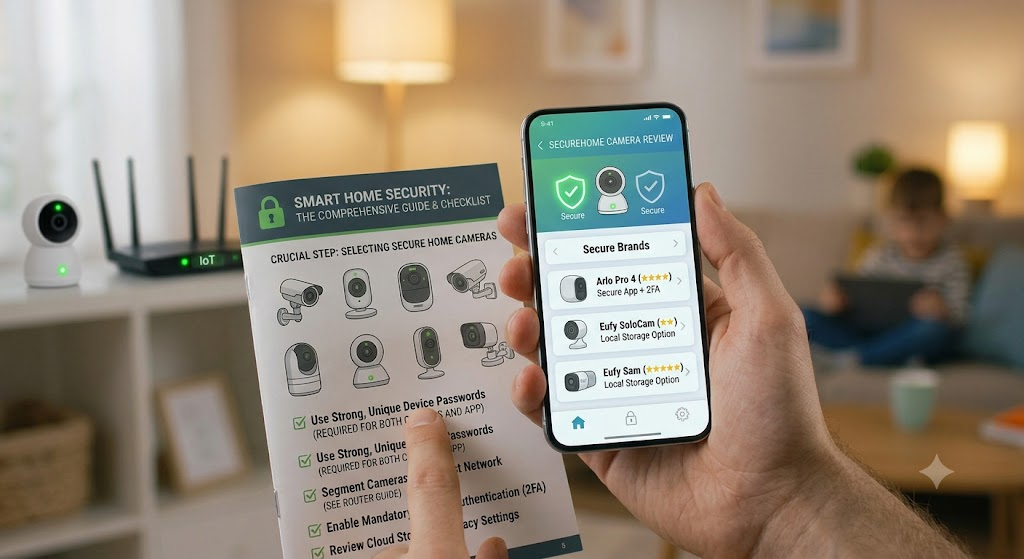
Many Internet of Things (IoT) devices have weaker security than computers or smartphones.
Examples include:
- Smart speakers
- Security cameras
- Smart bulbs
- Doorbells
- Thermostats
- Baby monitors
To reduce risk:
- Change default passwords.
- Update firmware regularly.
- Disable unused features.
- Connect IoT devices to a guest or separate network when possible.
Smart devices often become entry points for attackers if left unsecured.
Monitor Connected Devices Regularly
Your router dashboard displays every device currently connected to your network.
Review this list every few weeks.
Look for:
- Unknown smartphones
- Unrecognized laptops
- Suspicious IP addresses
- Duplicate device names
If you find an unfamiliar device:
- Disconnect it.
- Change your WiFi password immediately.
- Restart the router.
- Review router security settings.
Regular monitoring helps detect unauthorized access before it becomes a serious problem.